
The acronyms Blue Screen of Death or BSOD are likely terms you have already heard or used in computer technique. It deals with that blue screen of death, displayed on the computer screen monitor whenever there is an impending system crash or shutdown on the computer device. The first reports of a BSOD go as far back as the 1980s when Microsoft operating systems were not as complex as they are now. Since then, this screen has reoccurred over the years, with many users left drop-jawed and their heart racing.
BSOD or Blue Screen of Death, sometimes referred to as the Blue Screen of Doom, is a phenomenon that occurs when either a Microsoft Windows signed driver or mandatory Windows-sourced BIOS/driver sends an IRQ that hits the 0x1A, or difficulty level 12.
Common Problems
The most common causes include:
Hardware Issues
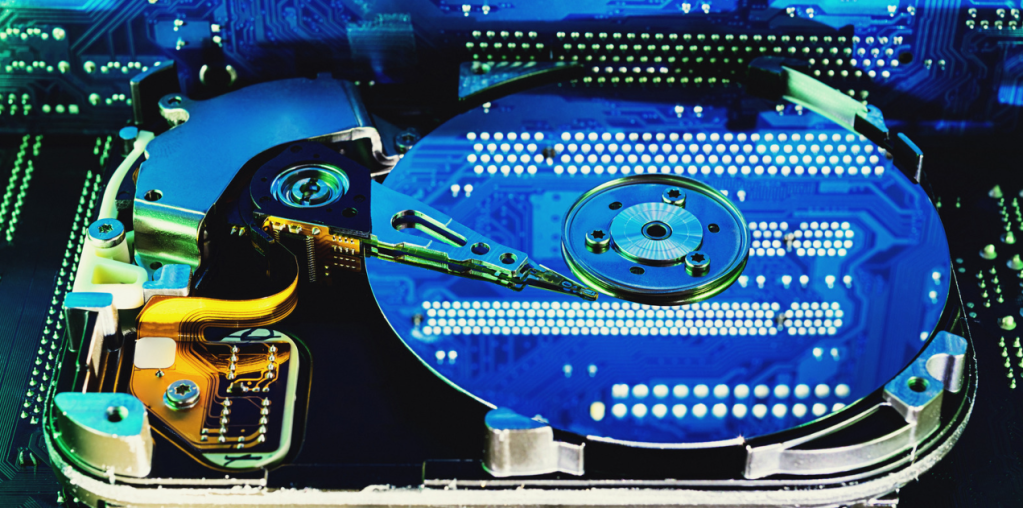
A significant cause of the Blue Screen of Death as a substantial source of system instability is hardware failure. This usually results in the fault of the hard drive, the RAM, or, more rarely, the power supply. A hard drive is vulnerable to failure either by the exposure of time or through physical impact, whereas a faulty RAM may go unnoticed when the computer is starting. Besides, poor power supply is standard and causes such outcomes as operation crashes and Blue Screens.
Driver Problems
If the drivers applied to your system are either obsolete or contain inherent errors that lead to corruption. Where there is a problem with the functionality of a device driver, for example, the graphic or perhaps the sound drivers, it will lock a fight with the operating system and cause the Blue Screen of Death. The only way to avoid getting involved with driver problems you have no control over is to ensure that all your drivers are updated and check periodically to make sure you get the latest updates.
Software Issues
Other common causes include software conflicts and problems with third-party applications. When it comes to computing, some programs, particularly those that cannot work closely with your operating system, can interfere with your hardware and software, leading to frequent crashes. In order to reduce the incidence of software-related problems, always ensure that your software is suitable for your hardware and operating system. Also, do not use two or more antivirus/security programs on a computer, as they interact with each other, thereby causing failure in the system.
Overheating
Another cause of the Blue Screen of Death is that the computer gets too hot. In some instances, when the computer becomes very hot, the system can switch off on its own to try and avoid further damage to the CPU. An overheating might be a result of an improper operation of the cooling system or due to some obstacles in introducing fresh air by the supply. If overheating is the cause of a blue screen of death, you can quickly determine from the temperatures of the CPU and graphics card. If they are above the threshold levels, you may need to borrow a vacuum cleaner and clean the dust in your computer or go for a new cooling system.
Virus or Malware Infection
Thus, viruses, worms, and any unpleasant software may sometimes lead to a blue screen. When your computer has been affected by a certain malware, this can slow the system’s operation and cause blue screens and forced shutdown. Of course, to avoid such Blue Screen, always have your anti-virus software updated on the computer, and scan the program regularly to check for any malicious software installed on the computer.
Troubleshooting Steps
Once you have determined why you have the Blue Screen of Death, you can start repairing it.
Here are some troubleshooting steps you can take:
Check the Error Message
The first process is diagnosing the problem, which means identifying the message written on the Blue Screen. It can also include details about ‘why’ the crash occurred and ‘which segment’ of your system needs attention. There are a number of regular error codes and messages/ What are STOP codes? They point to a specific hardware or software problem; another message is about overheating.
Restart Your Computer
In some cases, you may not even need to do anything else other than restart your computer to get over this Blue Screen of Death. This will refresh the memory and shut down any program that may be a hindrance to the system. If it continues like this, you will have to go further down that route.
Check for Updates
Maintain updates of all your operating systems, drivers, and software. Also, hardware conflicts arising from software can bring about Blue Screens, as can conflict between programs, which leads to crashes. Check to see if you can download new updates using Windows Update first and then check for the most recent drivers for your equipment.
Scan for Malware
If you feel that there is a virus or malware on the PC, it is essential to use an antivirus program to scan the entire system on the computer. If there is anything that the scan has found in your system, then delete it and reboot your computer.
Check Hardware Issues
Meanwhile, if you are convinced that the Blue Screen of Death is arising from a fault in the hardware, it is advisable to consult an expert. They can spot the problem and exchange any hardware that has been damaged.
Perform a System Restore
If you are still encountering Blue Screens, you may opt to do a system restore. This will bring your computer to the state it was in before it began to have a problem and start working perfectly for some time. To do this, go to the search bar of the window and click enter the command ‘System Restore”.
Reinstall Windows
However, before you push that button, there are other measures you can take; in the worst-case scenario, it is best to reinstall your operating system. This will help you clean any system files and drivers that might have gotten corrupted, which is the reason for Blue Screen of Death or BSOD. Please ensure that you have copies of all your files before you take the following step.
 Hightech Computers